

 VCOMPLY+
 SLACK
SLACKCompliance updates.
In your flow of work.
Bring assignments, deadlines, and reviews into Slack. Connect ComplianceOps to your workspace so your team knows what needs attention and can open the right responsibility in VComply.
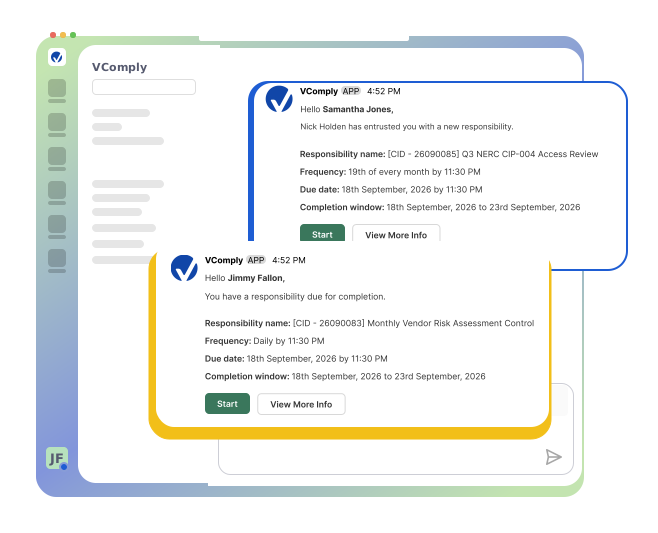




Connect your workspace. Keep your team informed.
An administrator enables Slack for your organization. Each user connects their account and chooses the notifications they need.
Connect the workspace
A Key Power User opens Organization Settings → Integrations → Slack and authorizes the workspace connection.
Link individual accounts
Each user opens My Account Settings → Integrations to connect Slack and choose which notification types to receive.
Receive updates in Slack
Assignments, deadlines, and reviews arrive as direct messages, with a link to the responsibility in VComply.
The right context. A clear next step.
Give your team the responsibility, deadline, and next action in one direct message. Open the workroom in VComply when it is time to act.
-
Updates when work changes
Receive a direct message when a relevant compliance event occurs, so your team can respond in the flow of work.
-
A direct link to the workroom
Open the exact responsibility in VComply to complete the task, submit evidence, or review the work.
-
Clear visibility into overdue work
Oversight users and assignors receive the assignee’s name, responsibility, and days overdue to guide follow-up.
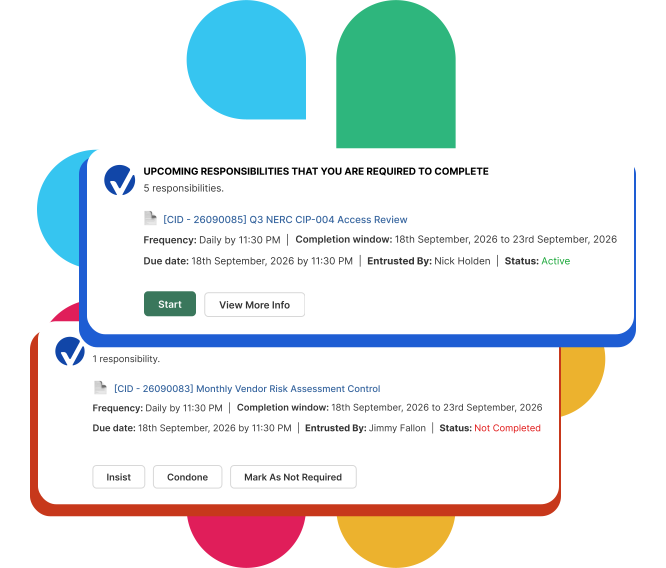
Keep every role informed.
From a new assignment to a completed review, ComplianceOps sends updates to the people responsible for the next action.
Responsibility Assigned
A new assignment brings the responsibility name, due date, program, completion window, and workroom link into Slack.
Deadline Approaching
Receive a reminder before the completion window closes, based on your organization’s configured notification lead time.
Overdue Alert
Assignors and oversight users receive the assignee’s name and days overdue when a responsibility passes its due date.
Review Requested
Reviewers are notified when they are assigned and when the assignee submits the responsibility for review.
Status Changes
Keep the relevant people informed about extension requests and decisions, cannot comply requests, redo actions, and handovers.
Completion Confirmed
Assignors and oversight users receive confirmation when an assignee or reviewer marks a responsibility complete.
Connect once. Keep work moving.
Start with your organization’s connection, then invite each user to link their account. Manage the integration in VComply.
Enable Slack for your organization
Sign in to VComply. Open Organization Settings → Integrations, enable Slack, and confirm. Sign in to the correct Slack workspace and review the requested permissions.
Confirm the workspace connection
After authorization, return to the Slack integration in VComply and check that the workspace is connected.
Connect each user’s Slack account
In My Account Settings → Integrations, select Connect and authorize the personal Slack connection. Users can then choose the notification types they need.
Receive compliance notifications
Connected users receive direct messages for relevant compliance events. Administrators can view connected users and adoption status in Organization Settings.

 Open VComply
An administrator enables the workspace integration first. Each user then connects their own Slack account.
Clear permissions. Controlled access.
Connect Slack with permissions designed for direct notifications. VComply does not read your Slack conversations or post to channels on your behalf.
Minimum required permissions
VComply requests four Slack scopes only: chat:write, im:write, users:read, and users:read.email. No admin, file, or channel read access is requested.
Secure token storage
The workspace bot token is held in AWS Secrets Manager, outside the application database, API responses, and logs. Disconnecting revokes the token through Slack’s API.
No message archive in the integration
VComply assembles notification content from the compliance event when it sends the message. The integration layer does not retain that message payload. Delivered messages are subject to your Slack workspace’s retention settings.
For full details on data handling, see the VComply Privacy Policy.
Bring your compliance updates into Slack.
Give your team a direct path from a Slack notification to the work that needs attention.