

Bring VComply straight into your Claude conversations
Connect the VComply MCP Server to Claude and ask about responsibilities, compliance performance, and programs in plain English — no dashboard required.
Official integration · Secured with VComply sign-in · Server: mcp.v-comply.com/mcp
Why connect VComply to Claude
The VComply MCP Server turns your compliance data into something Claude can read, summarize, and act on — securely, and in real time.
Ask in plain English
"What responsibilities are pending from my side?" is enough — Claude finds the right VComply tool and answers with your live data.
Secure by design
Every session authenticates through your own VComply sign-in. Claude never sees or stores your credentials.
Fits your workflow
No new tab, no new login screen to remember. Governance and compliance questions get answered right where you're already working.
Before you begin
A quick checklist to make sure the connection goes smoothly.
Prerequisites
- A valid VComply user account
- Access to a Claude account
- Signed out of VComply beforehand, so you can validate the authentication flow during setup
- The VComply MCP Server running and accessible
- The MCP server URL and configuration details on hand
Set up the VComply MCP connector
Six steps, done once per account.
Find and add VComply from the Claude Directory
Open the VComply listing in the Claude Directory and click Add to Claude.
VComply Claude Directory
https://claude.ai/directory/vcomply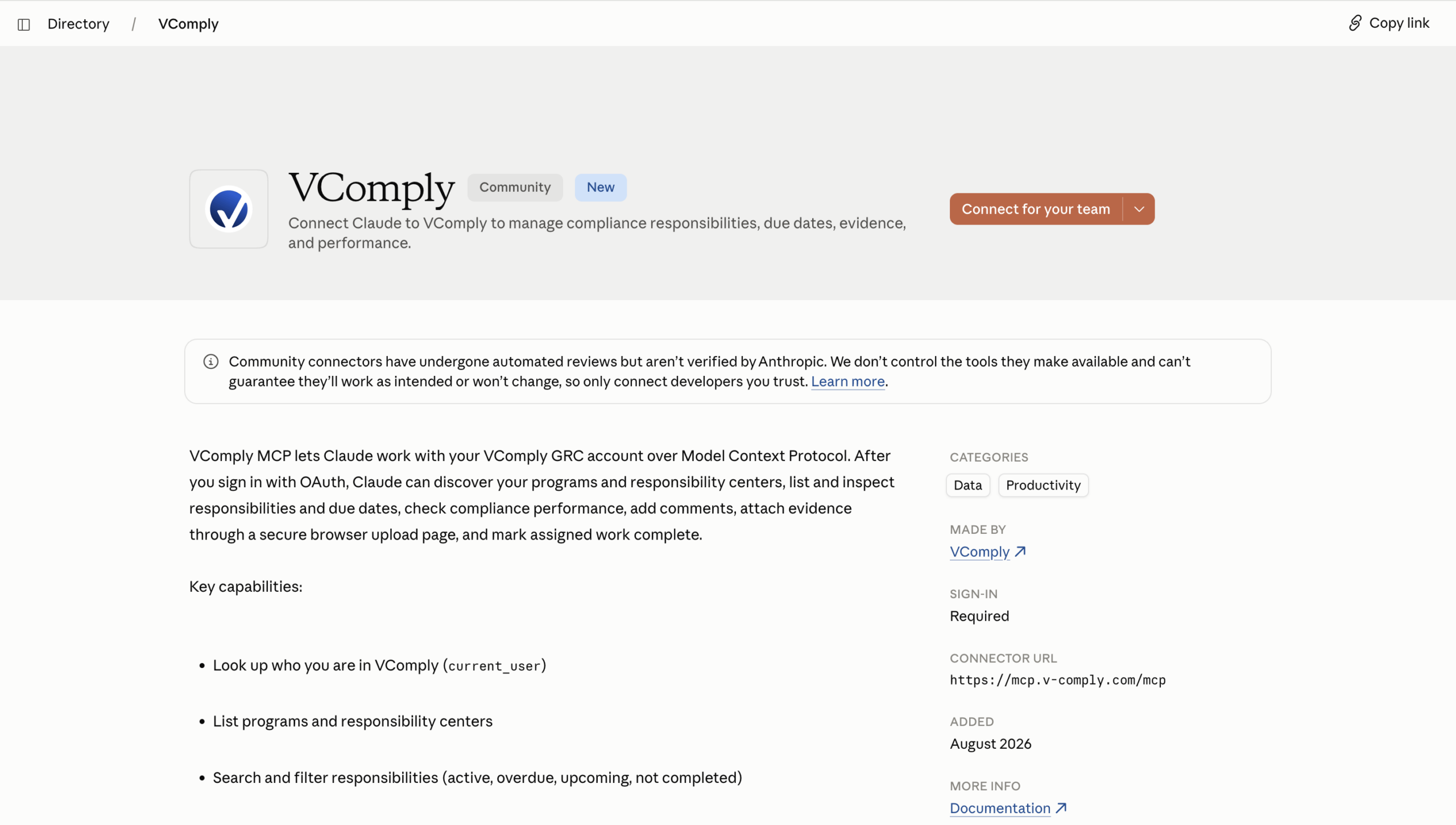
Choose how you want to connect
After clicking Add to Claude, Claude will ask how you want to connect VComply. Choose the option that matches your use case:
- Connect for me
Connect VComply to your individual Claude account. - Connect for team
Make VComply available for your Claude team, subject to your team's permissions and settings.

Connect and authenticate
After selecting your connection option, Claude will prompt you to authenticate with VComply.
- Sign in using your VComply credentials.
- Approve the connection when prompted.
- Once authentication is successful, you'll be returned to Claude.
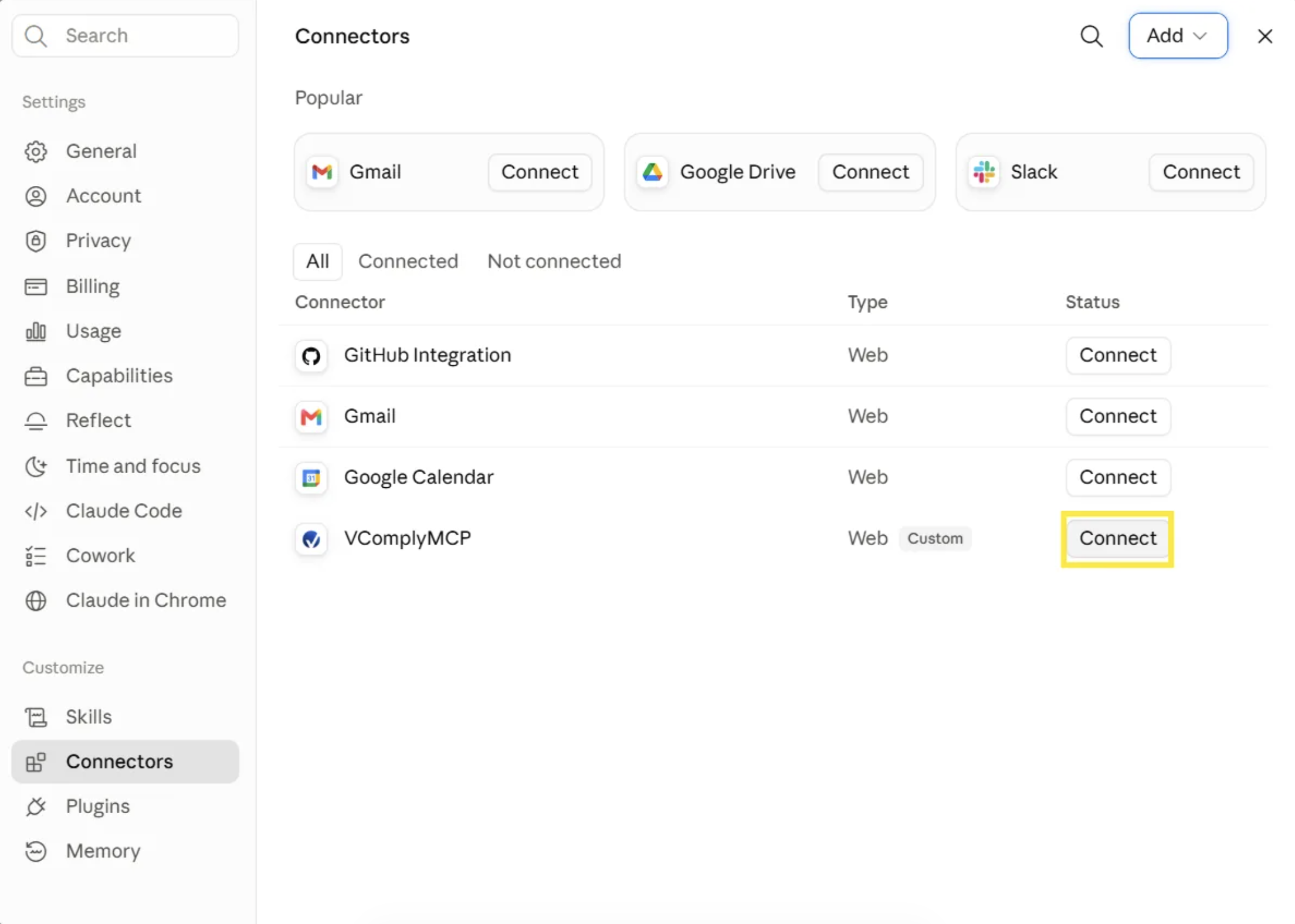
Start using VComply in Claude
You can now ask Claude questions about your VComply data.
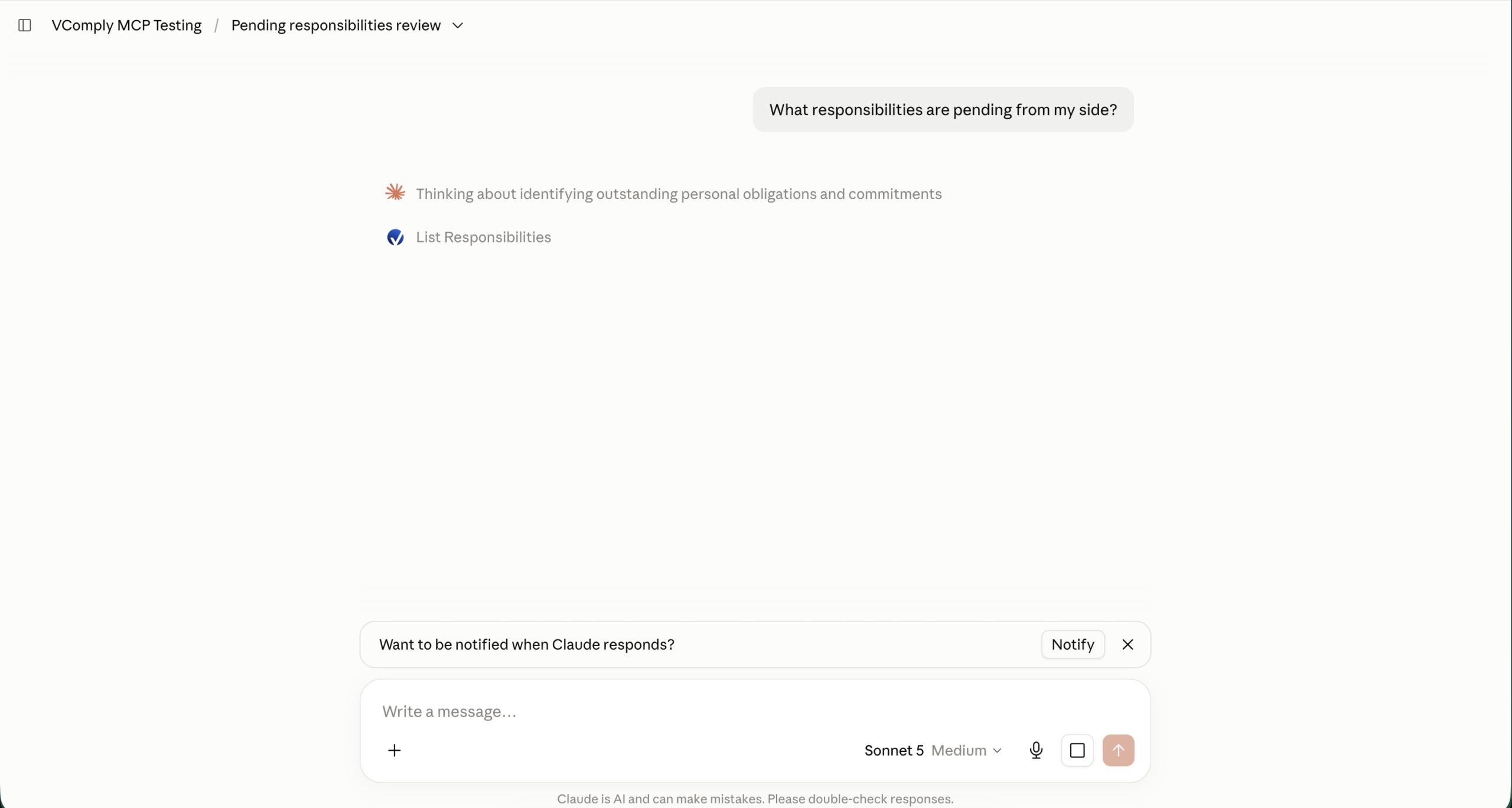
Try a question
What responsibilities are pending from my side?
Claude will identify the appropriate VComply tool and retrieve the relevant information.
Other examples
- Show me my overdue responsibilities.
- What compliance tasks are due today?
- Give me an overview of my current responsibilities.
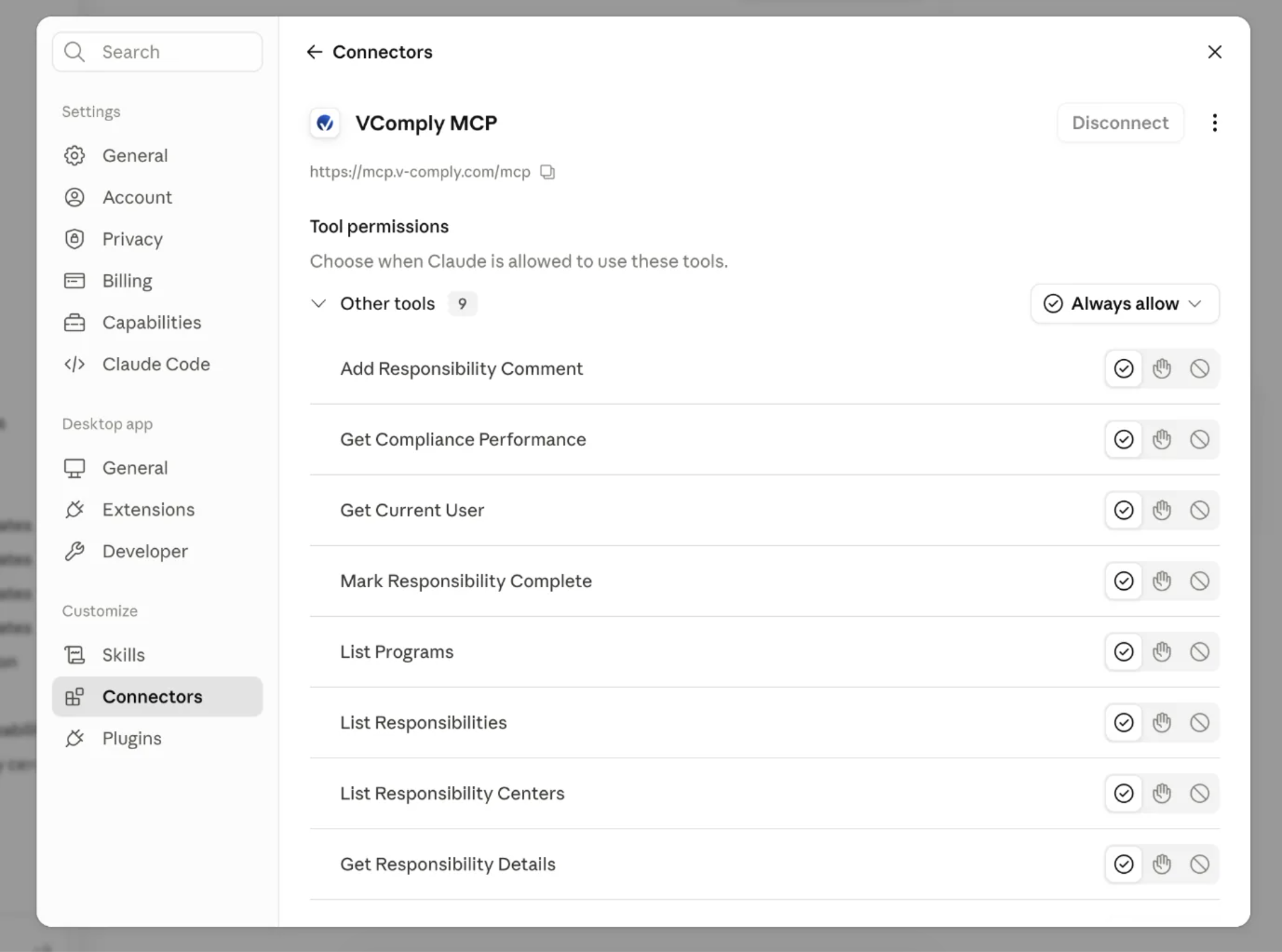
Set tool permissions
Depending on your Claude setup, you may be asked to configure permissions for the VComply tools.
You can choose the permission level that works best for your workflow:
- Always Allow
Claude can use the tool without asking for permission each time. - Ask First
Claude asks for permission before using the tool. - Never
Claude will not use the tool.
Configure Evidence Upload
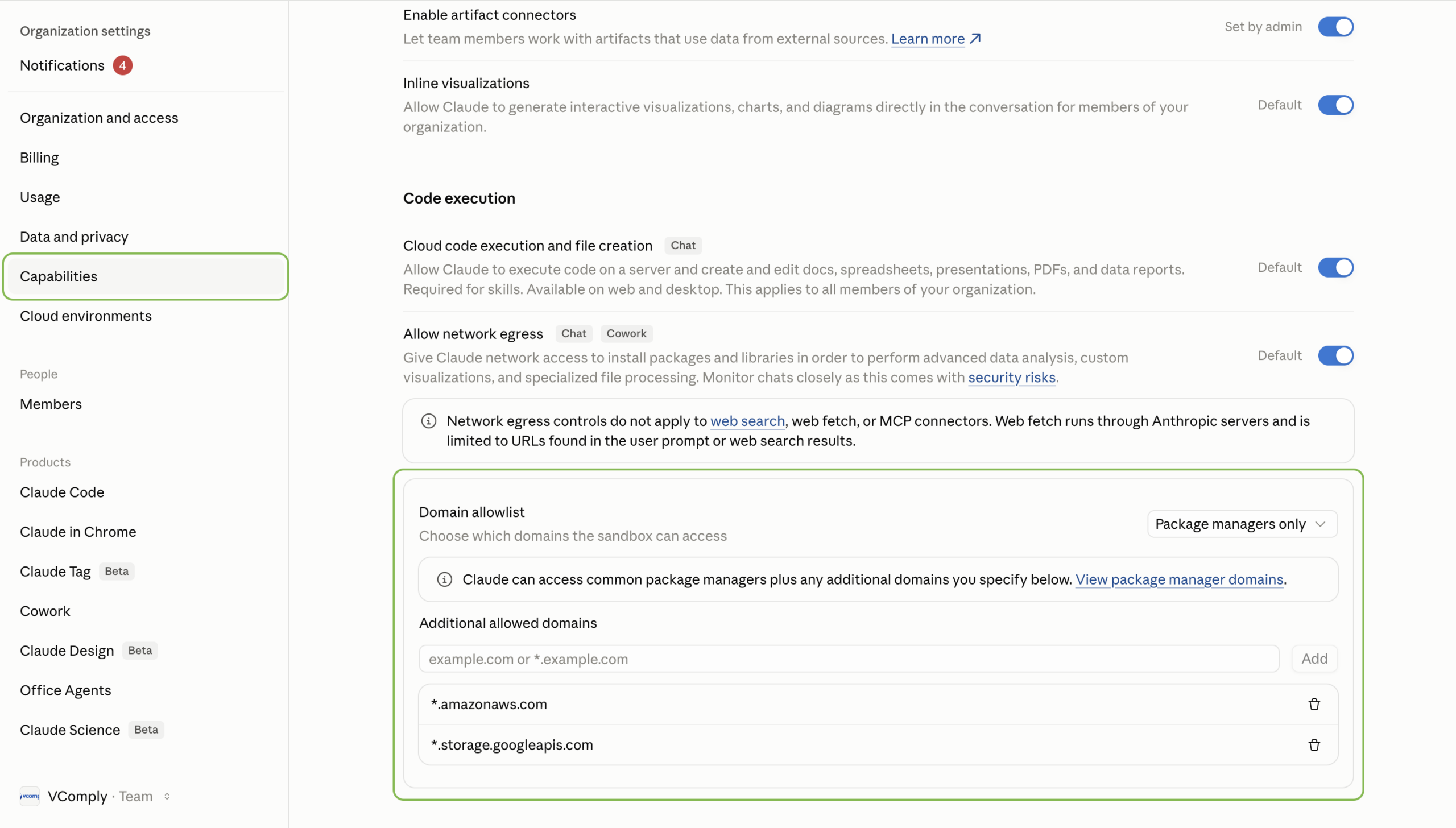
If you use Evidence Upload workflows, add the following domains under:
Add the required domains
In Claude, open: Capabilities → Domain allowlist
Save your settings
- Once the domains have been added, save the changes.
- Your Evidence Upload workflows are now ready to use with VComply.
What Claude can do with VComply
9 tools are exposed by the VComply MCP Server, including:
List Responsibilities
See every responsibility assigned to you, with due dates and status.
Get Responsibility Details
Pull the full detail on any responsibility without leaving the chat.
Mark Responsibility Complete
Close out a finished responsibility directly from Claude.
Add Responsibility Comment
Log an update or note on a responsibility as you work through it.
List Responsibility Centers
Browse the responsibility centers configured in your account.
List Programs
Get a quick overview of the compliance programs you're enrolled in.
Get Compliance Performance
Check compliance and performance scoring at a glance.
Get Current User
Confirm the authenticated VComply identity Claude is acting on behalf of.
Permissions for each tool are set individually on the Connectors page — see step 5 above.
One question, your live VComply data
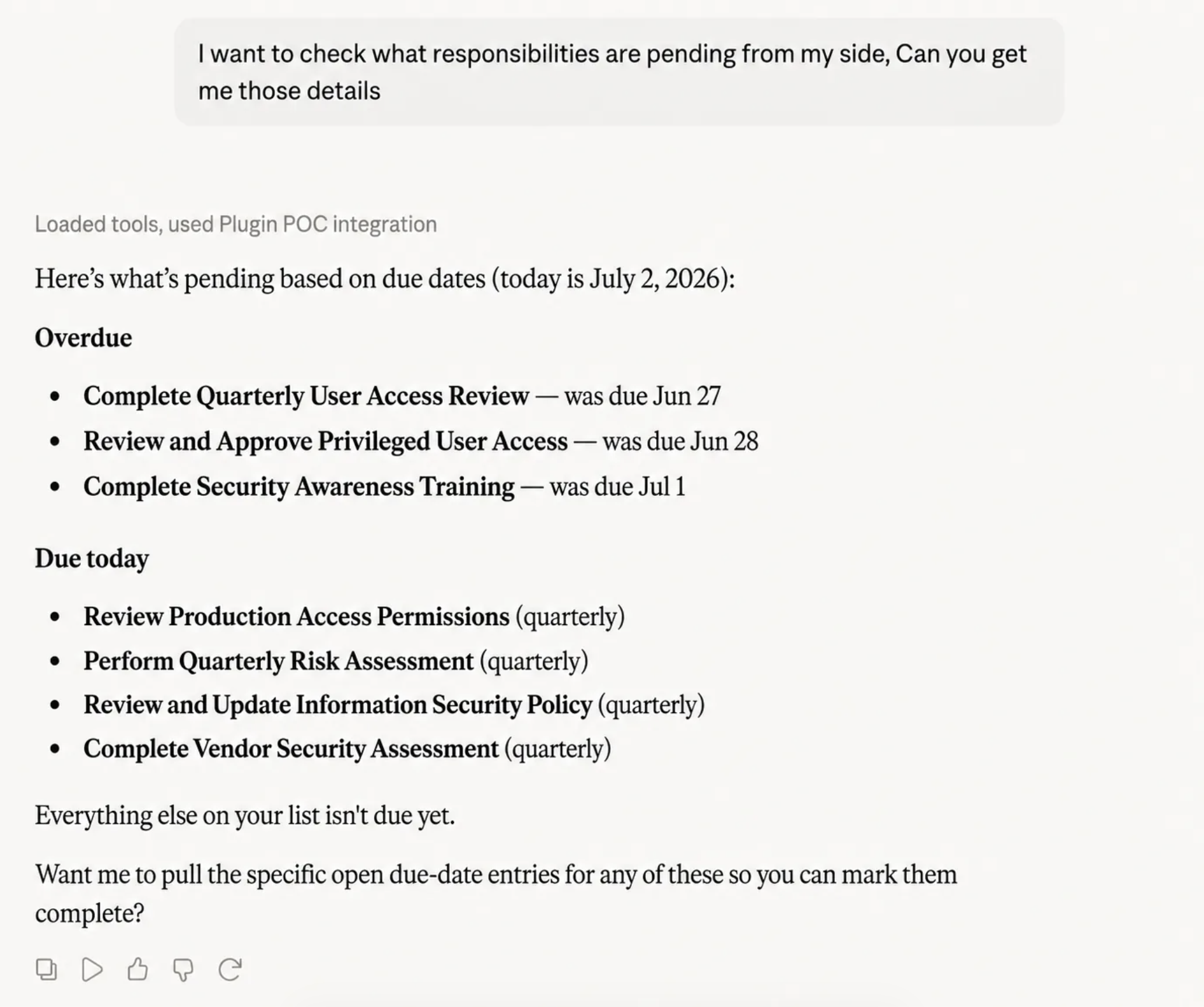
Once connected, a simple question like "What responsibilities are pending from my side?" returns overdue items, what's due today, and what's next — pulled straight from VComply.
Frequently asked questions
Is my VComply data secure?
Yes. Claude connects through your own VComply sign-in over SSL, the same login you use on v-comply.com. Claude never stores your VComply password.
Do I need to sign out of VComply first?
It's recommended for your first setup. Signing out beforehand lets you confirm the authentication prompt and sign-in redirect are working as expected.
What is the VComply MCP Server URL?
Use when adding the custom connector in Claude.
Why do I need to allow amazonaws.com and storage.googleapis.com?
These domains are only required if you use Evidence Upload workflows that store files in S3 or Google Cloud Storage. Add them under Capabilities → Domain allowlist.
Ready to Simplify Compliance?
Stop juggling spreadsheets and scattered tools.
Join the 500+ teams modernizing compliance with VComply’s all-in-one GRC platform.